The Complete User Guide
A comprehensive deep-dive into every feature, setting, and interaction within mi. Browser.
Pill Interactions
mi. Browser is designed for one-handed use. Everything centers around "The Pill" at the bottom of your screen.
Tap the Pill
Focuses the address bar. Type a URL or a search query to navigate instantly.
Swipe Up
Reveals the Dashboard. This is your hub for History, Bookmarks, and System Settings.
Swipe Down
Hides the Pill entirely for an immersive full-screen experience. Tap the floating recall button to bring it back.
Search Engine Only
Tap the search engine icon inside the address bar to force search mode. This bypasses URL parsing and sends your query directly to your search engine.
Navigation Gestures
Swipe Right
Go back to the previous page in your history.
Swipe Left
Go forward to the next page if you've navigated back.
Pro Tip: These gestures work directly on the Pill area, allowing for effortless one-handed browsing.

The Dashboard

Swipe up on the Pill from any page to reveal your navigation hub. The Dashboard gives you instant access to your most important data.
Tabs
Switch between your open browsing sessions.
Bookmarks
Access your saved favorite sites and folders.
History
View and search your recently visited pages.
Settings
Configure every detail of your browsing experience.
Secondary Menu: Tap the "Menu" button on the far right of the Dashboard to access Power Tools like Reader Mode, QR Tools, and Desktop Site toggles.
Expanded Search
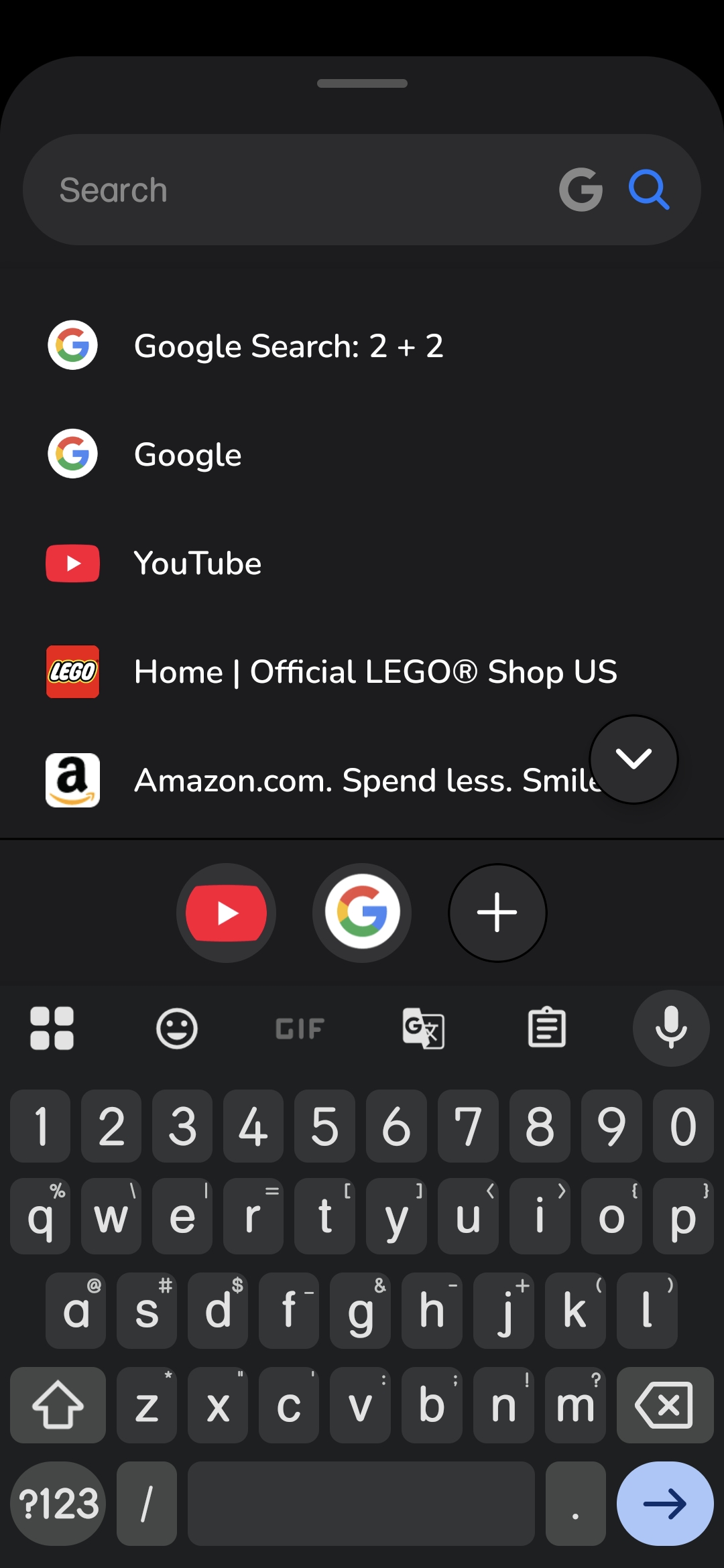
Access your history and favorite sites without leaving the search experience. When the search pill is focused, an expanded interaction area appears.
Recent History
Drag the handle above the Pill upwards to reveal a quick-access list of your most recent visits.
Favorites Bar
A persistent row of your top 5 pinned sites sits at the bottom of the drawer for instant navigation.
Adding Favorites
Tap the '+' icon in the Favorites Bar to instantly pin the current page to your quick-access list.
Rearrange Favorites
Touch and drag any favorite icon to reorder them instantly.
Drag to Delete
Drag a favorite icon upwards out of the bar area to remove it.
Configurable: Use settings to automatically expand history or keep the Favorites Bar visible every time you focus the Pill.
Tab Management
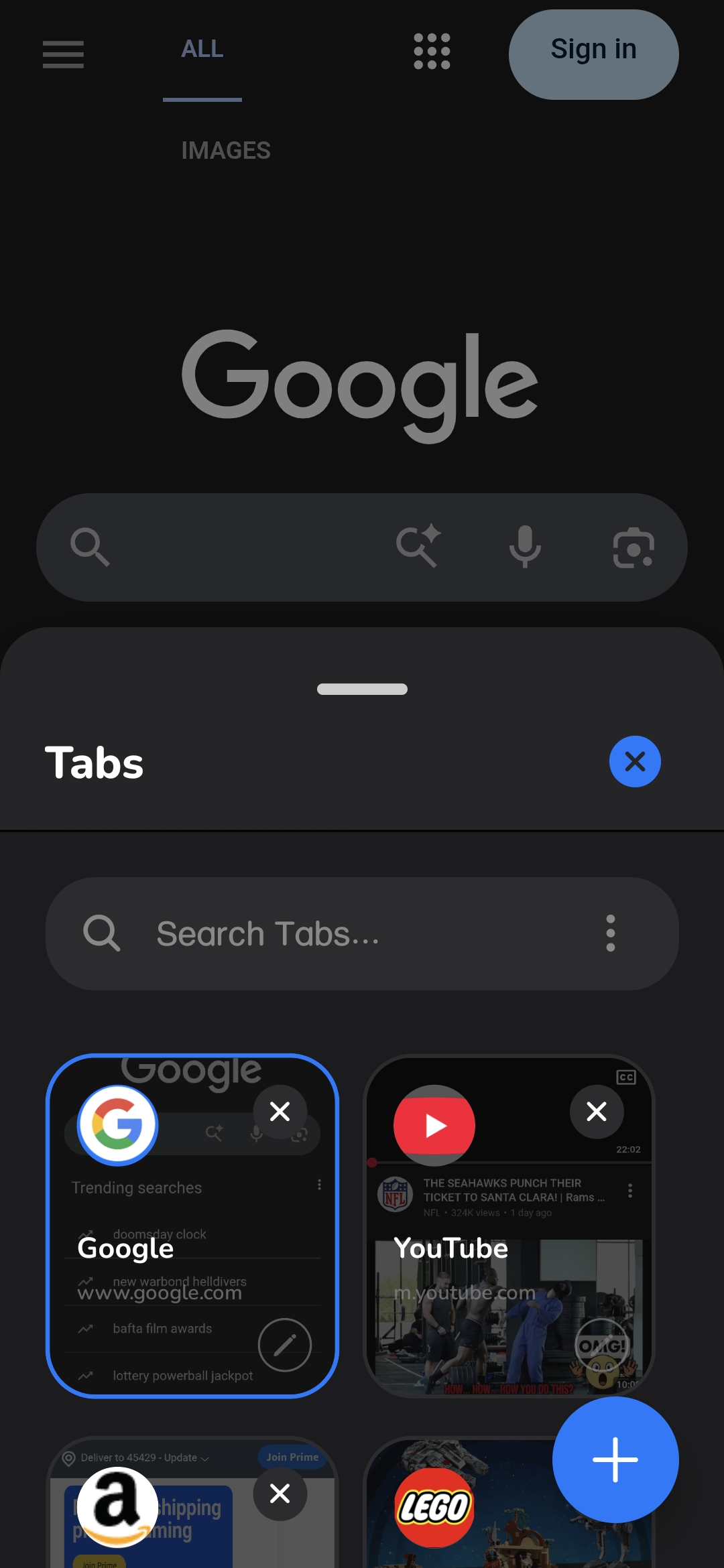
Manage multiple sessions with ease. mi. uses high-fidelity snapshots so you never lose your place.
Grid/Card View
Switch between dense rows or large visual cards in Settings.
Reordering
In the tab view, long-press a tab and drag it to a new position to reorder your workspace.
Closing Tabs
Swipe left on a tab row or tap the 'X' on a card to close it. Use 'Clear All' to reset completely.
Tab Editing
Tap the pencil icon on any tab to change its display name for better organization.
Visual Snapshots
Real-time previews of your pages help you identify the right tab in seconds.
Bookmark Management
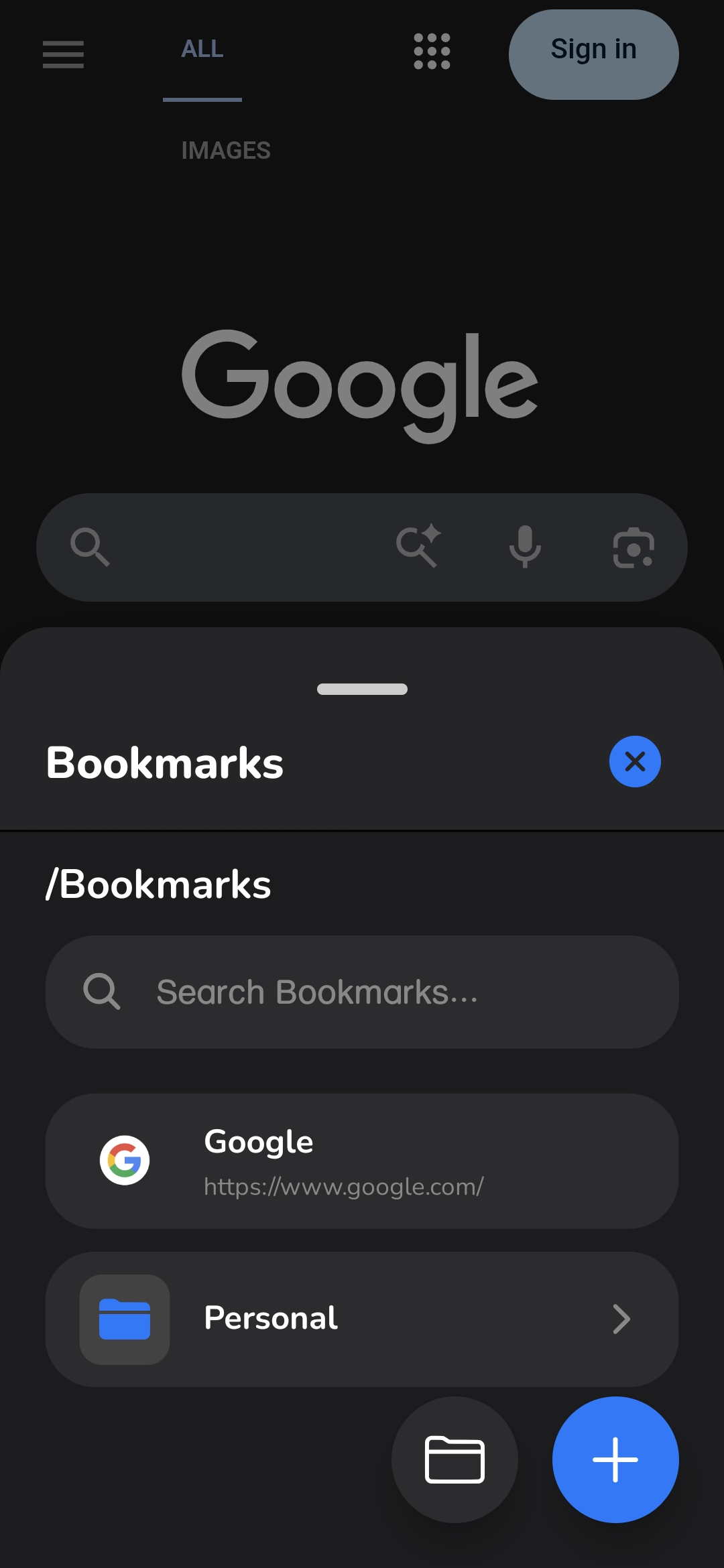
Keep your favorite corners of the web organized. mi. Browser provides a flexible bookmarking system with folder support.
Quick Save
Open the Dashboard Menu and select 'Bookmark' to instantly save the current page to your library.
Swipe to Edit
Swipe left on any bookmark or folder to reveal Edit and Delete actions. You can change names, URLs, or move items between folders.
Nested Folders
Create and manage folders to group related bookmarks together for easier access.
Instant Search
Quickly find any saved bookmark by typing in the search bar at the top of the Bookmarks view.
History Management
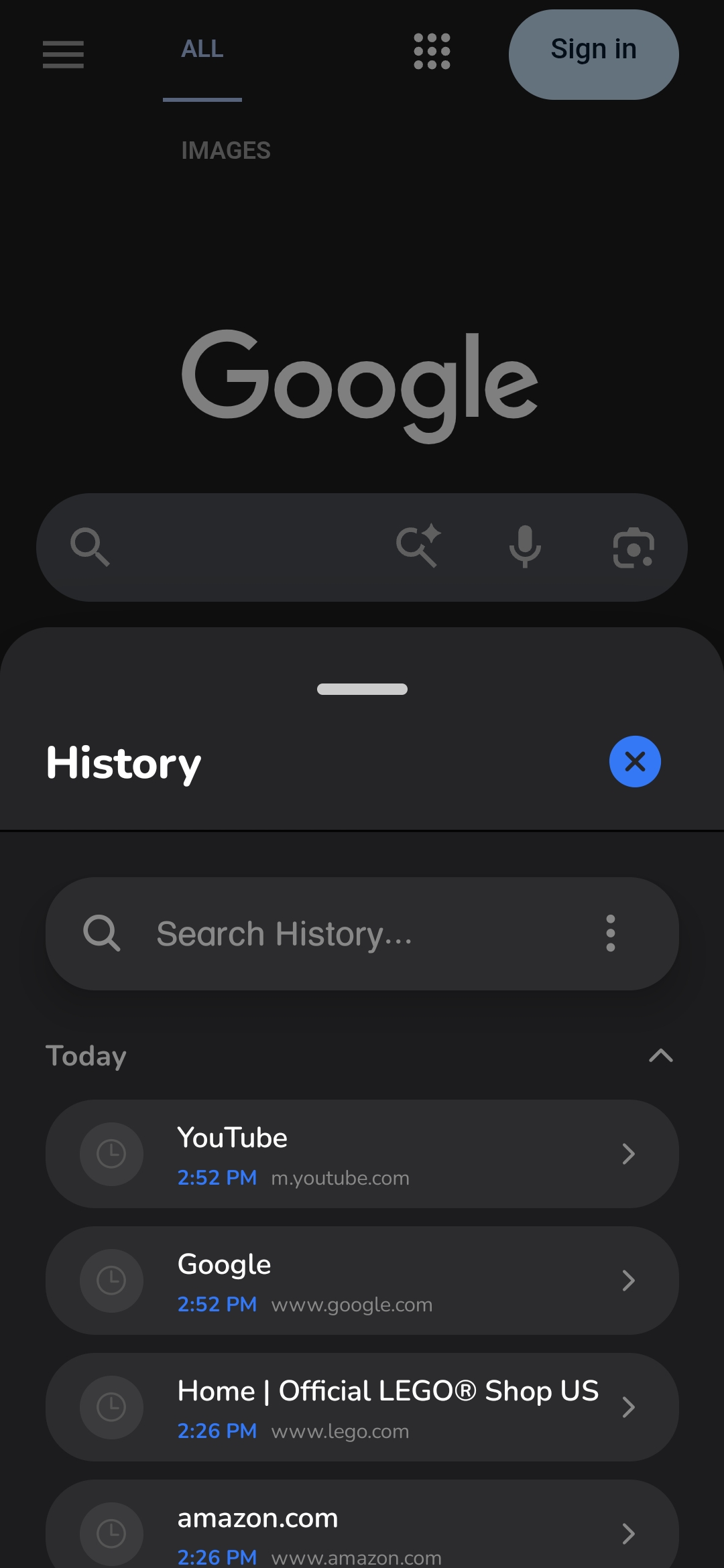
Never lose a page you've visited. mi. keeps a local-only record of your browsing activity that stays entirely on your device.
Search History
Filter through your past visits using the search bar within the History view.
Partial Deletion
Swipe left on any history item to remove it individually without affecting the rest of your data.
Clear Ranges
Wipe your history for the last hour, day, week, or all time via the trash icon in History.
Local-Only
Your history is never uploaded to any cloud. It is stored securely on your local file system.
Settings
Every aspect of mi. Browser can be customized. Here is a breakdown of every available setting:
Pro Tip: Most settings apply in real-time. You can change your accent color or UI spacing and see the results instantly without restarting the app.
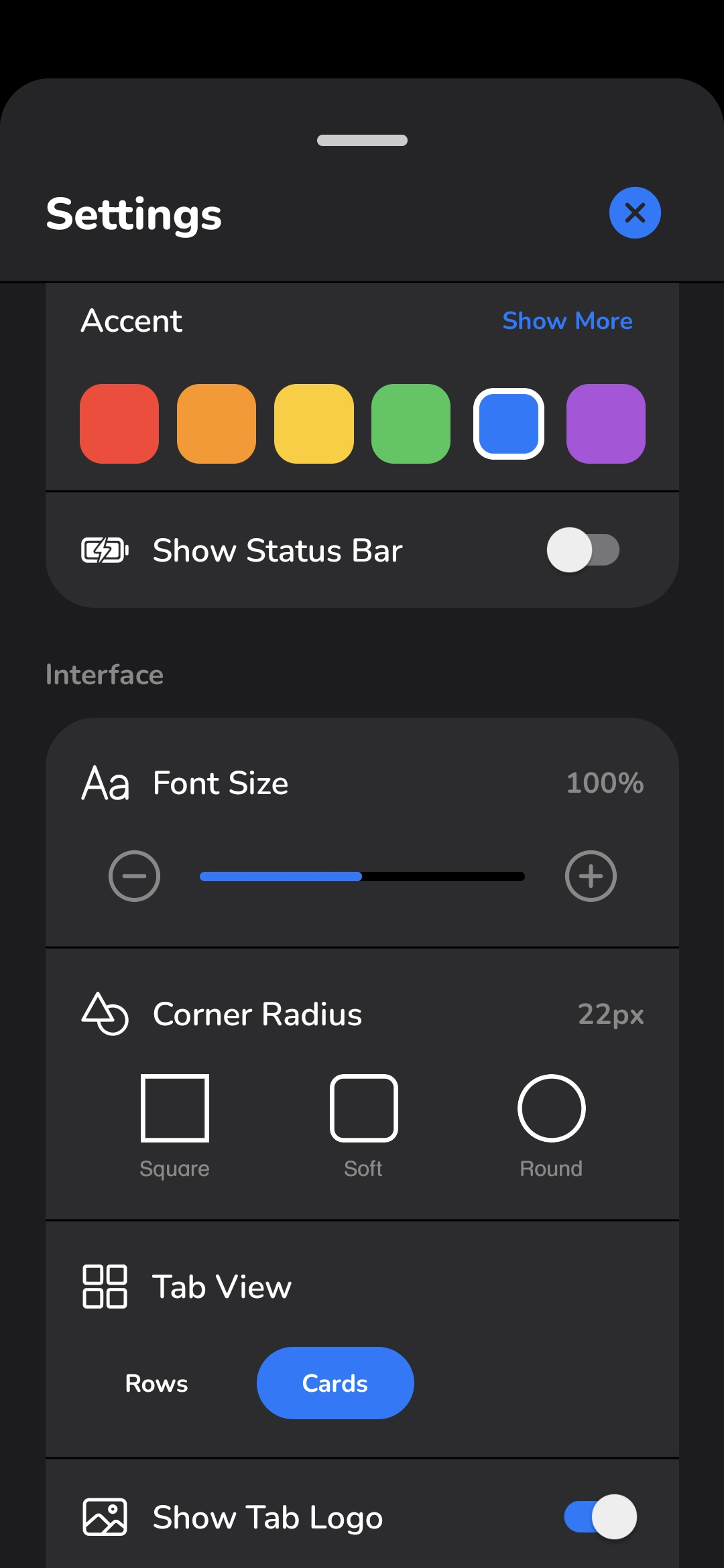
Colors
Theme
Choose between Light, Dark, or Adaptive. Adaptive mode generates a custom theme based on your Accent Color.
Accent Color
Pick from 18 hand-selected colors that define the app's UI elements, buttons, and highlights.
Interface
Font Size
Adjust the global font scale from 80% to 120% to suit your readability needs.
Font Weight
Choose between Light, Normal, or Bold to adjust the weight of all text throughout the interface.
Corners
Choose between Square (0px), Semi-Round (10px), or Round (22px) for all UI components and cards.
Spacing
Select Compact, Normal, or Airy to adjust the padding and density of the interface.
Status Bar
Toggles the visibility of your device's system status bar (clock, battery, etc.) for a more immersive look.
Pill
Size
Choose between Thin (60px), Normal (70px), or Tall (80px) for optimal thumb reach.
Loading Bar
Choose the progress bar style: Standard (Left-to-Right), Center Out, or Hidden.
Pin Favorites
Keeps the Favorites Bar visible at the bottom of the search drawer whenever the Pill is focused.
Expand Searches
Toggles whether your most recent searches are automatically expanded when opening the Pill.
Reorder Icons
Drag and drop the Dashboard menu bar icons into your preferred order for quicker access to Tabs, Bookmarks, History, or Settings.
Home Page
Center Logo
Choose the logo style displayed at the top of the home page: None, Static, or Fidget (interactive).
Clock
Select the clock format on the home page: None, 12h, or 24h.
Date
Choose the date placement on the home page: None, Above Clock, or Below Clock.
Weather
Toggle the weather widget on the home page: None, Simple (icon only), Detailed (with conditions), or Hourly (forecast strip). Requires location permission.
Shortcut
Toggle the home page shortcut button on or off. When enabled, choose its action: New Tab, QR Scanner, Bookmarks, or History.
Background Image
Set a custom background image for the home page from your photo library. Includes a Darkness slider to control the overlay opacity.
Tabs
Style
Toggle between Rows (dense list) or Cards (visual grid).
Site Logo
Toggles the visibility of website icons (favicons) in the tab switcher. When disabled, a letter avatar is shown.
Preview Content
Enables real-time snapshots of your pages when using Card view.
Background Refresh
When enabled, all tabs render on app startup instead of when opened. This allows for instant switching but uses more battery.
History
Group By
Organize your history by Time (Today, Yesterday) or by Site (hostname).
Load Count
The number of history items rendered at a time (10, 25, 50, or 100). Rendering more items may affect performance.
Clear History
Wipe your browsing data for the last 24 hours, 7 days, 4 weeks, or all time.
Bookmarks
Site Logo
Toggles the visibility of website icons (favicons) in the bookmarks list. When disabled, a letter avatar is shown.
Browsing
Search Engine
Support for Google, Bing, DuckDuckGo, Brave, Ecosia, and Yahoo.
On Startup
Choose to start with a New Tab or Continue Session (restores your last browsing session).
Security
Enable JavaScript
Optionally disable JavaScript for maximum security or to bypass certain site restrictions.
HTTPS Only
Forces the browser to only connect to websites via secure encrypted connections. Local IP addresses and localhost are excluded.
App Data
Export Settings
Save all your settings and home page background to a shareable file for backup or device migration.
Import Settings
Restore settings from a previously exported file. This replaces your current configuration.
Reset All Settings
Revert every setting to factory defaults without affecting your bookmarks, history, or tabs.
Wipe All Data
Permanently delete all app data including bookmarks, history, tabs, favorites, and settings.
Power Tools
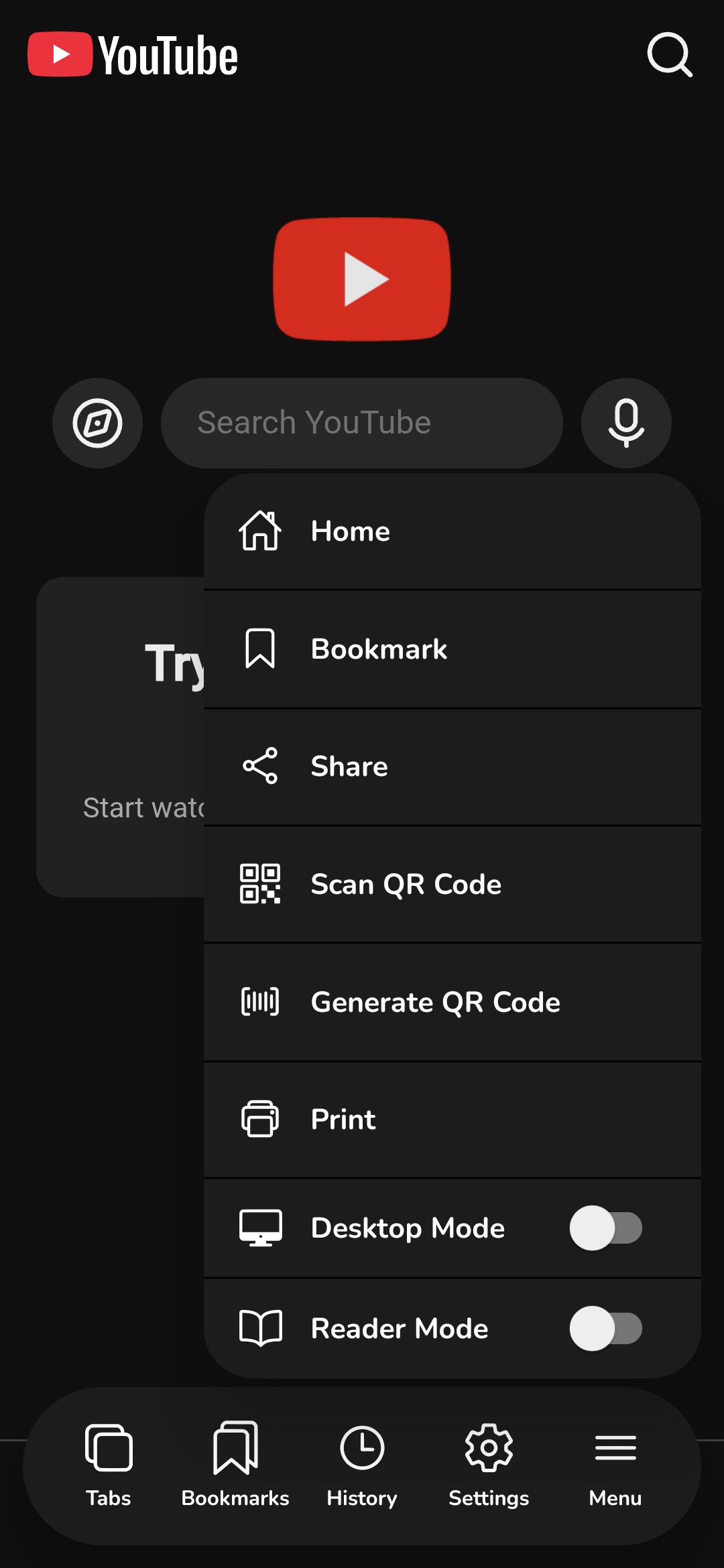
Tap the Menu button on the Dashboard to access advanced utility tools for any page.
Quick Bookmark
Save the current page to your bookmarks with one tap from the Power Tools menu.
Find in Page
Search for specific text within the current webpage. Highlighting and navigation between matches included.
QR Toolbox
Scan physical codes, upload images from your gallery to scan, or generate a code for the current URL.
Reader Mode
Removes ads and clutter, leaving only the text and essential images for a clean reading experience.
Desktop Mode
Requests the desktop version of the current site for full functionality.
Share & Print
Native integration with your device's share sheet and wireless printing capabilities.
Privacy by Design
mi. Browser is not just minimal in design, but minimal in data collection. Your browsing remains yours.
We do not track your history, cookies, or search patterns. No data is sent to our servers.
All bookmarks and history are stored locally on your device using industry-standard encryption.